Short answer: "URL to video" tools come in four kinds. Article-to-video tools read the text on a page and lay it over stock clips. Avatar tools have a presenter read a script based on the page. Screen recorders film you clicking through the site. Real-UI motion tools such as Motioneed capture the page itself (your logo, colors, copy and screenshots) and animate it into a scored video. For a product or SaaS page, the last kind is the only one where the video shows the actual product without a recording session.
People type "url to video" expecting one kind of tool and get four. They all take a link, but they make very different videos. Below is what each kind does with your URL, where it fits, and how to choose.
The four kinds of URL to video tool
| Kind | What it does with your link | What the video shows | Best for |
|---|---|---|---|
| Article to video | Summarises the text into scenes | Stock footage and text captions | Blog posts, news, listicles |
| Avatar presenter | Writes a script from the page | A generated person talking | Training, internal updates |
| Screen recording | Nothing; you record the site | Your cursor on the live page | Docs, support, quick walkthroughs |
| Real-UI motion | Captures brand, copy and screenshots | Your own interface, animated | Product pages, launches, ads |
Article to video
These tools pull the headline and paragraphs from a URL, cut them into short captions, and match each caption with a stock clip. They work well when the page is an article and the visuals don't need to be specific. On a product page they struggle: the stock clips show generic offices and laptops, not your product.
Avatar presenter
The tool writes a script from the page and a generated presenter reads it. Useful when you want a face and a voice and the subject doesn't need to be seen. The product usually appears only as a screenshot behind the presenter, if at all.
Screen recording
The most honest option: you open the site and record. It shows exactly what the product does, but you still need to plan the take, cut the dead time and add zooms and music. It is the right tool for anything behind a login.
Real-UI motion
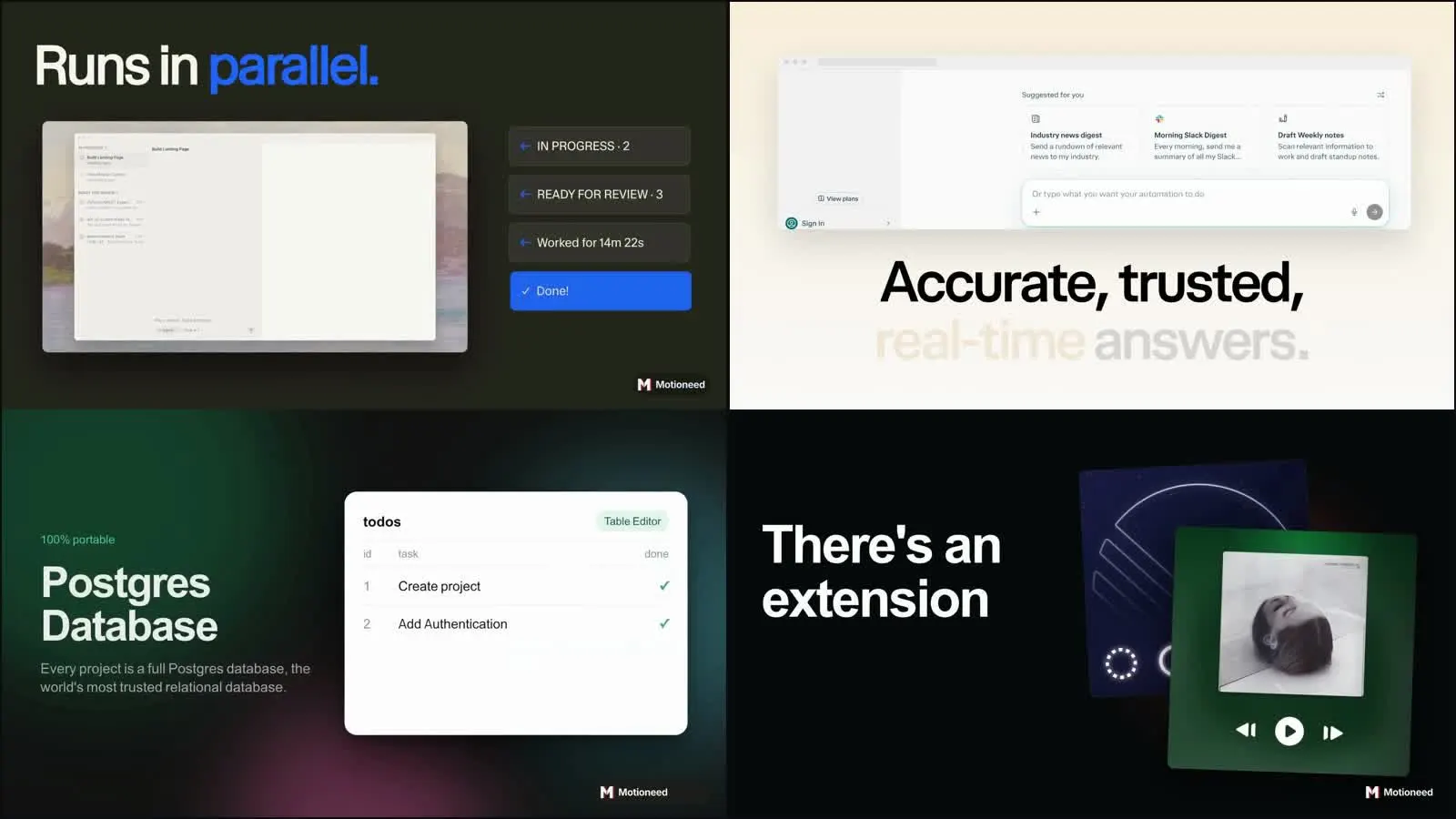
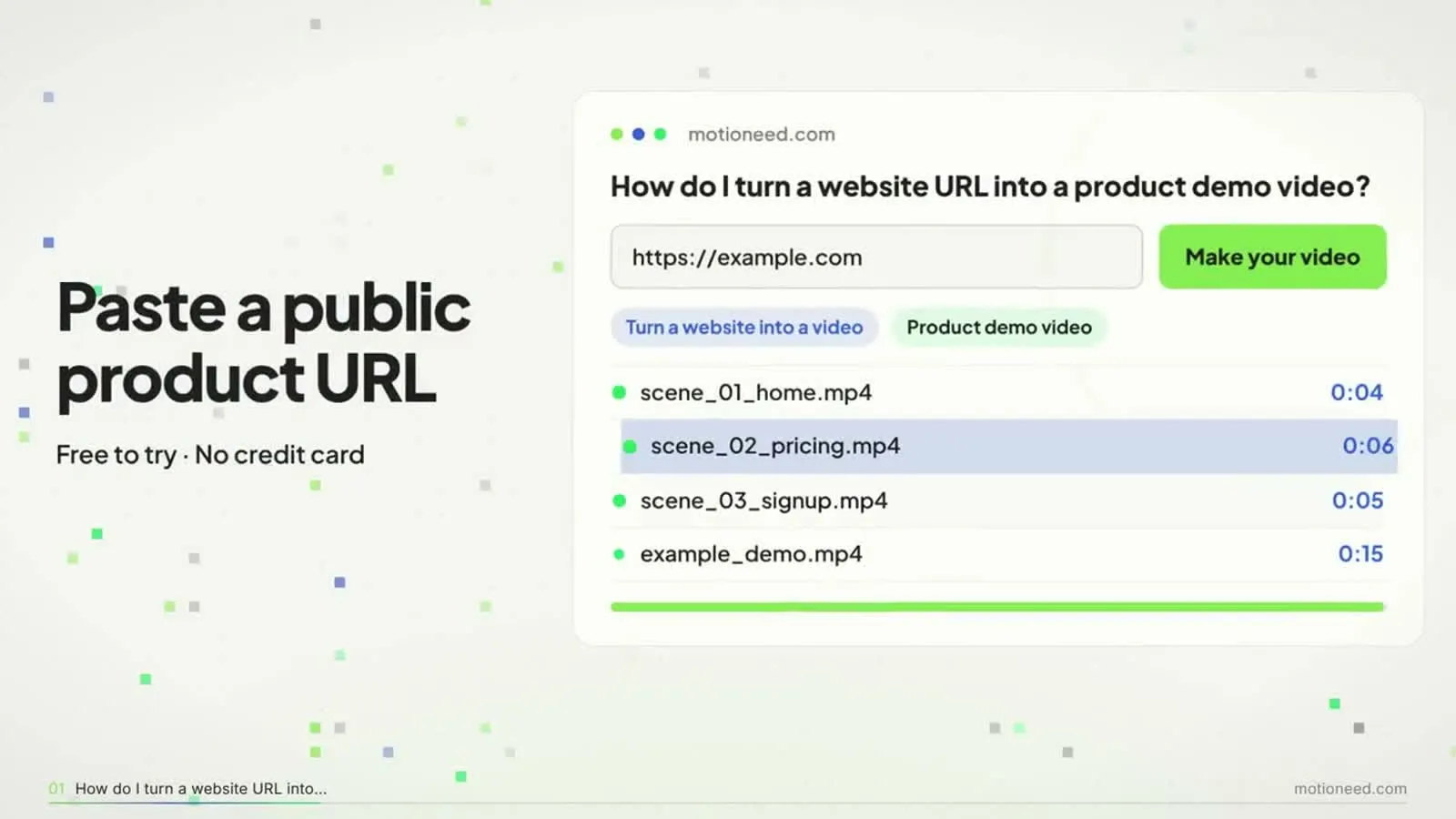
This is what Motioneed does. It opens the public page in a browser, reads the brand and the copy, crops the screenshots to the parts that matter, and rebuilds them as animated scenes with music. Nothing is invented: no stock clips, no actors, no made-up numbers.
How to pick
Ask what the viewer needs to see.
- They need to see the product. Use real-UI motion, or a screen recording if the screens are behind a login.
- They need to hear a person. Use an avatar tool, or a presenter over your real page. Motioneed's Demo films your public page being used with a presenter in the frame.
- They need the gist of an article. An article-to-video tool is fine.
URL to video with Motioneed, step by step
- Paste a public URL: a homepage, a feature page or a pricing page.
- Pick a shape: 16:9 for your site and YouTube, 9:16 for Reels, Shorts and TikTok, 4:3 for slides, 3:4 for feed posts.
- Pick a length: 10, 15, 30, 60 or 90 seconds.
- Watch the preview. Motioneed shows the scenes it planned and the screenshots it used.
- Ask for changes in plain words, then export without the mark on a paid plan or credit pack.
If the page needs a sign-in, Motioneed stops and tells you instead of making a thin video, and no credits are used. On paid plans the Chrome extension films the page while you are signed in.
What makes a URL work well
| Your page has | What it gives the video |
|---|---|
| A clear headline | The opening line |
| At least one real product screenshot | Something to show besides text |
| Short feature blocks | One scene each |
| A visible call to action | The closing card |
Pages that are mostly a single sign-up form, or that hide everything behind a cookie wall, give the video little to work with. Try a feature page instead of the homepage.
What it costs
New accounts get 6 free credits, enough for a 10-second preview with the Motioneed mark. Motion is charged per finished second: 0.5 credits on Haiku 5.5, 0.9 on Sonnet 5.5 and 1.8 on Opus 5.5. Pro is $29 a month for 100 credits; packs start at $15 for 40. A failed video gives its credits back. See pricing.
FAQ
What is a URL to video tool?
A tool that takes a web address and makes a video from what is on that page. Depending on the tool, the video uses stock footage, an AI presenter, a recording of the page or the page's own interface.
Can I convert a URL to a video for free?
Motioneed's free credits make a 10-second preview with the mark from any public URL, with no credit card.
Does it work with YouTube or TikTok links?
No. Those links point to a video that already exists; Motioneed makes new videos from websites and product pages.
Can it use pages behind a login?
Not from the server. On paid plans, the Chrome extension films a page while you are signed in.
How long does it take?
A 15-second Motion video is usually ready in a few minutes.
Which shape should I pick?
16:9 for your website and YouTube, 9:16 for Reels, Shorts and TikTok. The vertical ad guide covers 9:16 in detail.