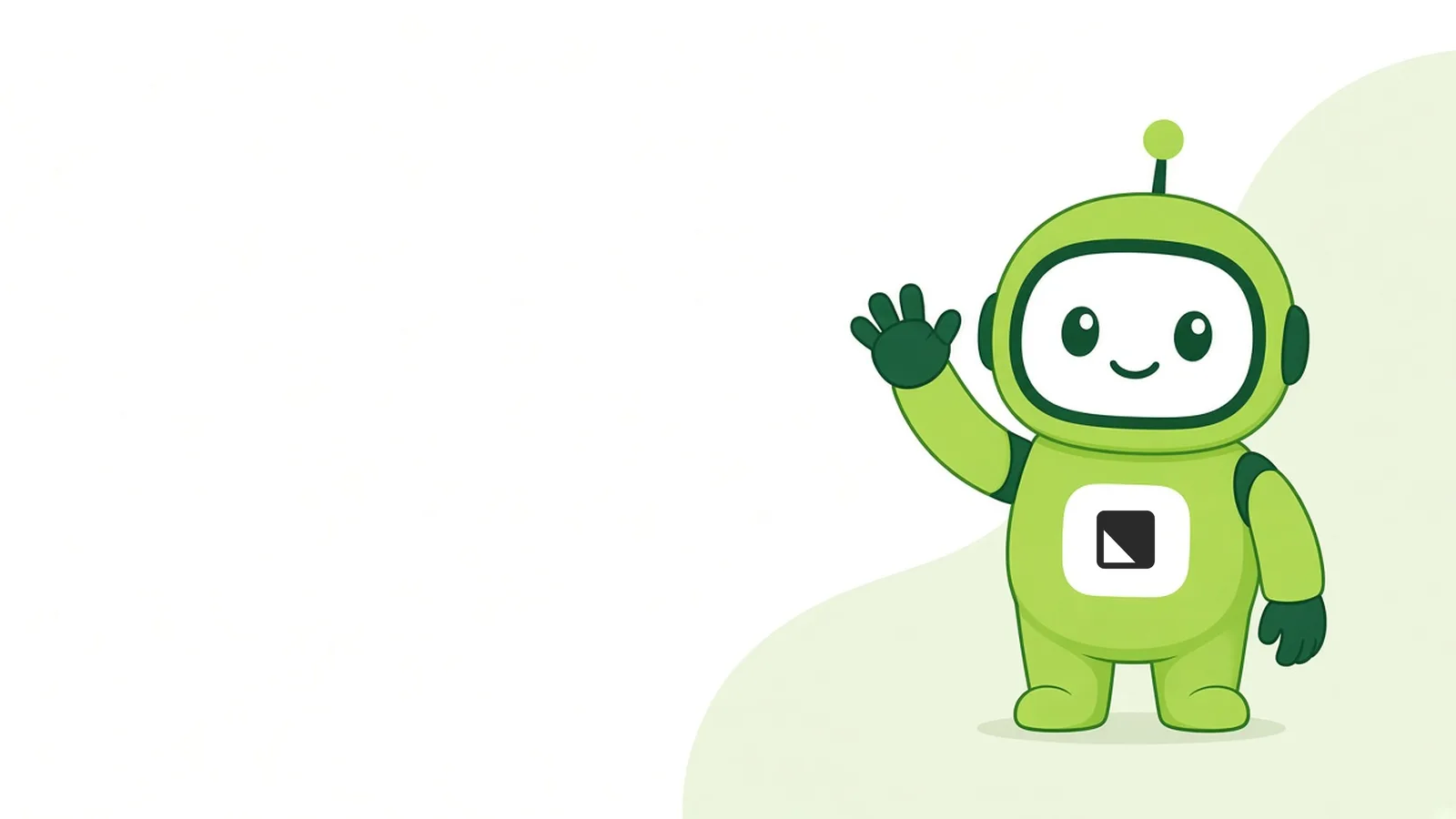
Short answer: Mote is Motioneed's mascot, a small, rounded green robot with a screen for a face. Mote will present our product tutorial videos from the bottom-right corner while a real screen recording of Motioneed fills the frame. Mote points at the product. Mote never pretends to be the product.
If you've read why we built Motioneed, you know where we stand: a video about software should show the software. So it might seem odd that we're introducing a character. This post explains who Mote is, why we chose a mascot instead of an avatar, and how Mote will appear in the tutorials we're making next.
Who is Mote?
Mote is a guide. Picture a friendly usher standing next to a screen, pointing at the button you need to press next. That's the whole job.
Mote is small on purpose. In every tutorial, the biggest thing on screen will be the real Motioneed interface, not the character explaining it.
What Mote does:
- Says one short line per step: what to do and why.
- Points at the part of the real interface that matters right now.
- Reacts with a simple expression when something finishes, or when a step needs attention.
What Mote doesn't do:
- Click, type or "use" the product. Every action in a tutorial is a real recording of the real UI.
- Stand in for a person, a customer or a testimonial.
- Promise results the product doesn't deliver.
Why a mascot instead of an AI avatar?
Motioneed turns a URL into a video built from your real logo, colors, copy and interface. We don't use AI avatars, the photorealistic talking heads that read a script in front of a stock background. We think avatars are a weak way to explain software, for three reasons.
Avatars compete with the product
A realistic face pulls the eye, and a viewer watching a face is not watching your dashboard. In a product tutorial video, the interface is the thing people need to learn, so it should get the attention.
Avatars imply something that isn't true
A photorealistic presenter quietly suggests "a real person from this company is talking to you." A flat cartoon robot suggests nothing of the kind. Everyone knows Mote is a character, so there's nothing to see through.
A mascot stays consistent
Mote looks the same in every video, at every size, in light and dark mode. Same shape, same green, same voice. That consistency matters more to a tutorial series than realism does.
Our line for this is simple: Mote is a guide next to the real UI, never a stand-in for it.
How Mote appears in our tutorials
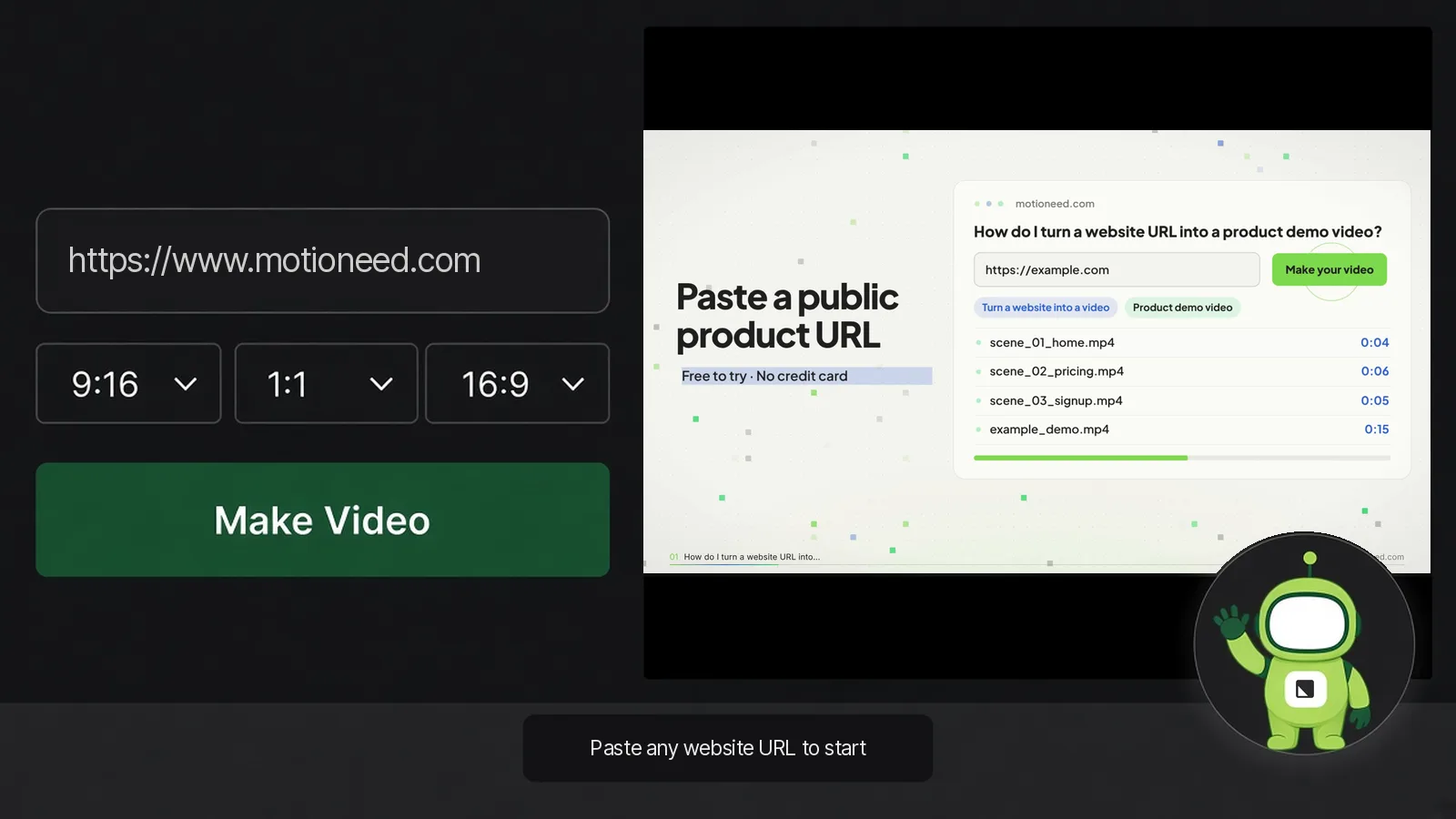
Our upcoming tutorials use one layout:
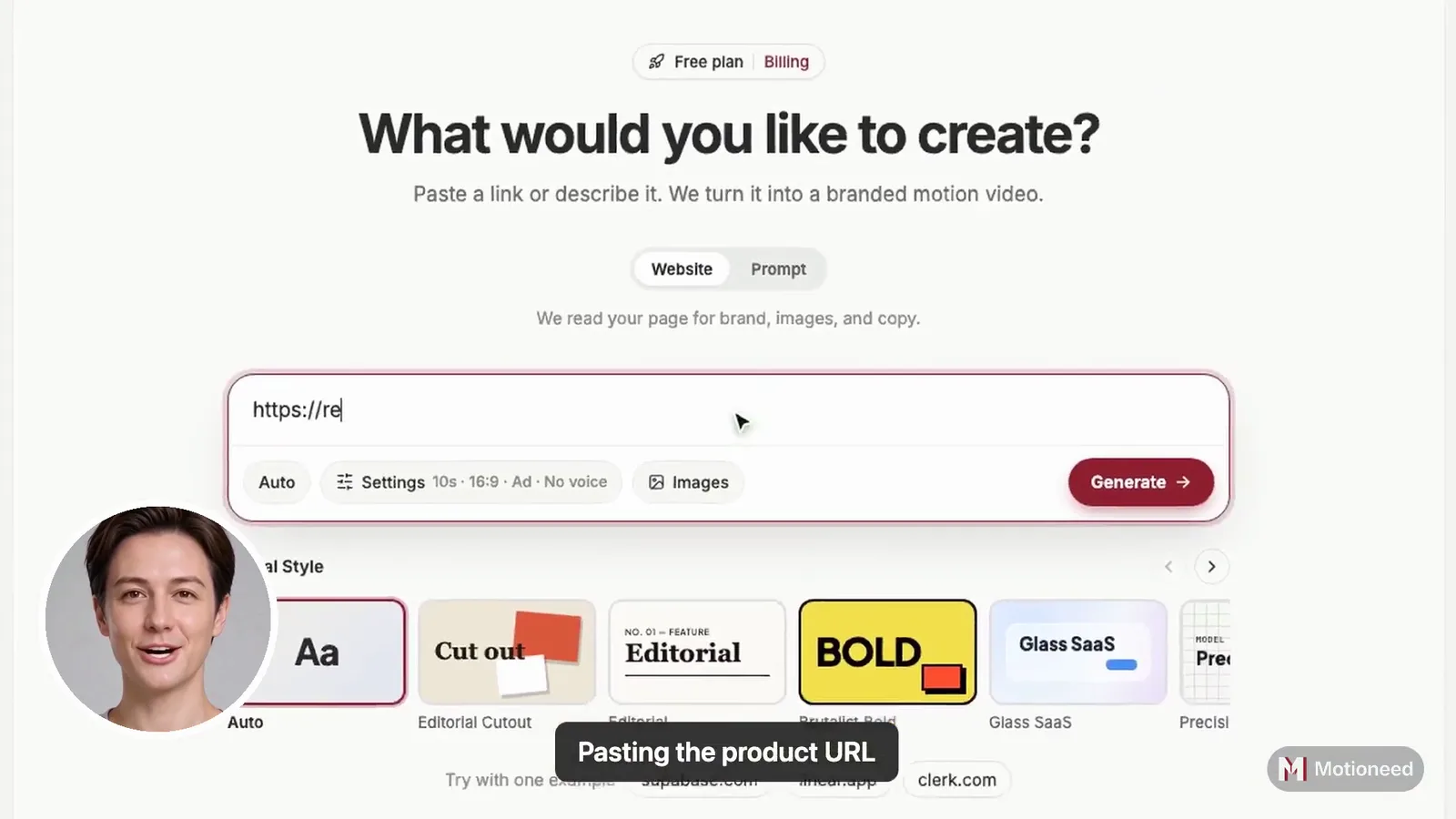
- The real screen recording fills the frame. It's an actual Motioneed session, not a mockup or a re-animation.
- Mote stands in the bottom-right corner, small enough to stay out of the way of buttons and menus.
- Captions sit at the bottom so every tutorial can be watched with the sound off.
- Mote gestures toward the step, such as the URL field, the length and aspect options, or the Make Video button.
The flow Mote will walk through
The first tutorials cover the core loop, the same one you can try on the homepage today:
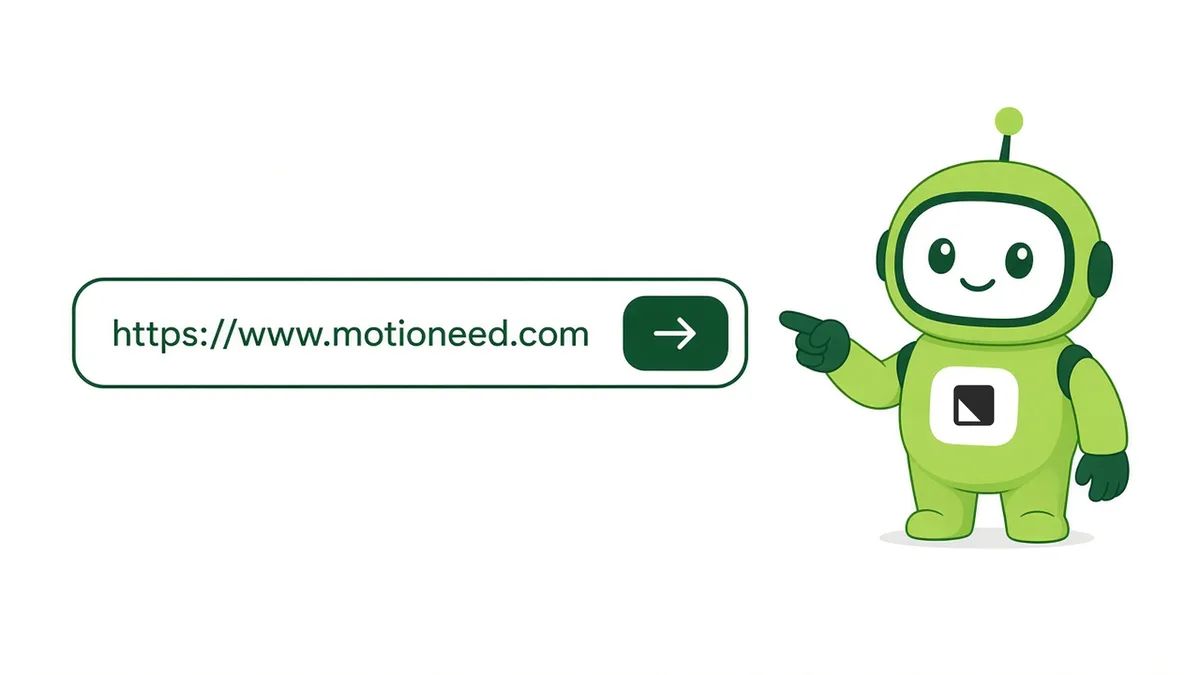
- Paste a URL. Any public website works.
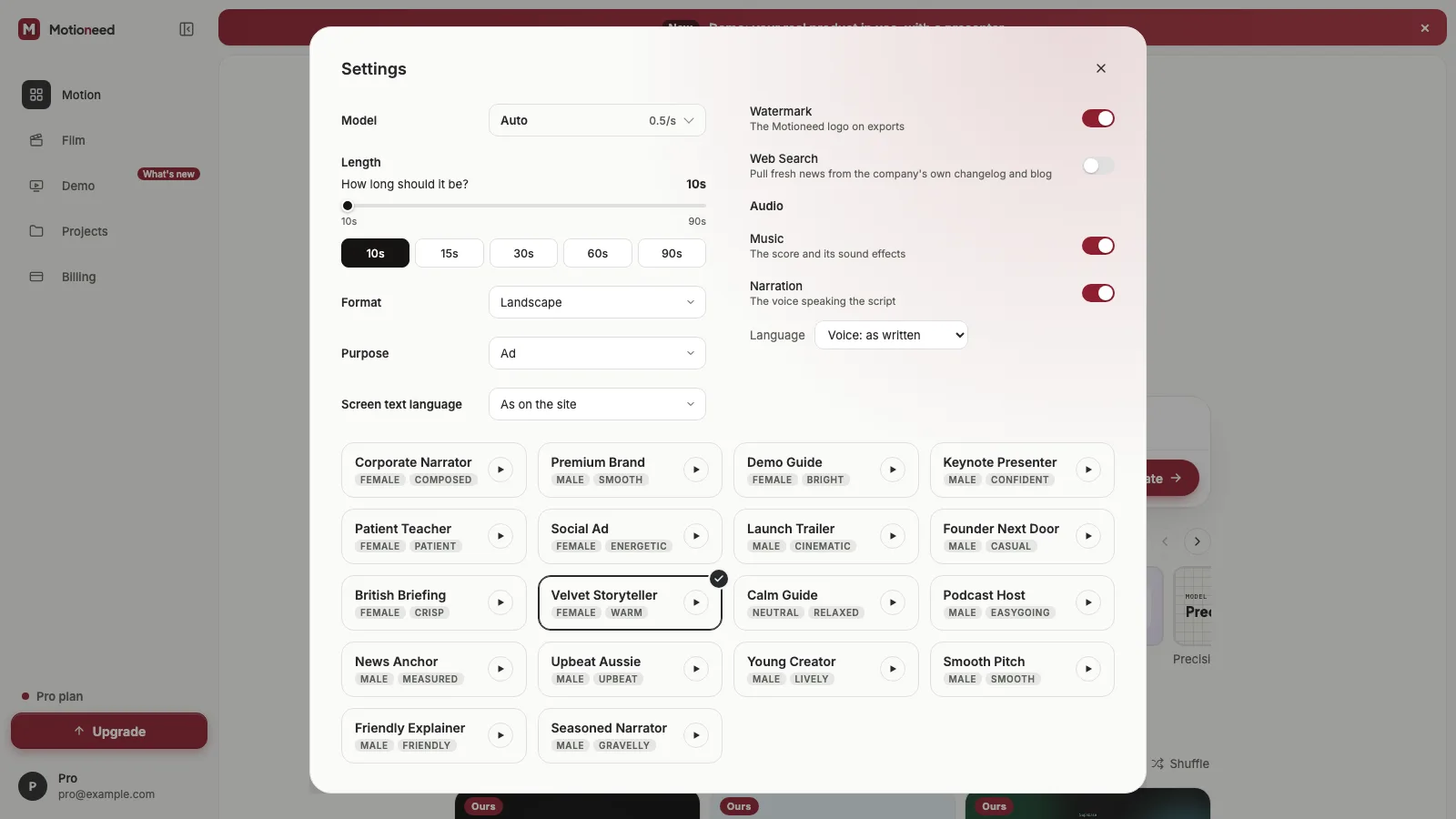
- Pick a length and an aspect ratio, landscape for YouTube or portrait for Shorts and phones.
- Make Video. Motioneed reads the site's logo, colors, copy and screens, and builds the cut.
- Preview it, then use the revision box to ask for changes.
We'll be upfront about plans in the tutorials too. On the free plan you get 6 credits and can create and preview videos. Exporting needs a paid plan. Details are on the pricing page.
Mote's design
Colors
Mote's body is #8E1F2F, the Motioneed green. The hands, ears and outlines are a dark green, #3A0C14. The Motioneed logo sits on Mote's chest on a white badge, so the character always reads as part of the brand.
A screen for a face
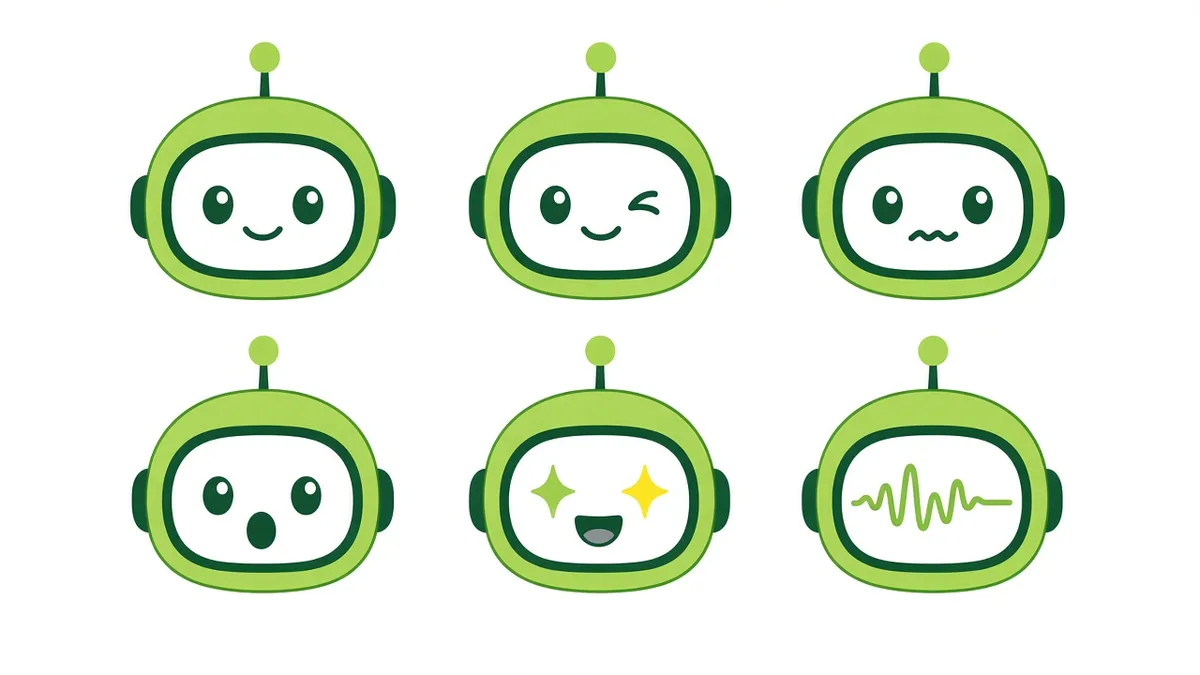
Mote's face is a screen with simple eyes, and it has a small set of expressions: happy, wink, unsure, surprised, excited and talking. A short list is deliberate. Fewer expressions are easier to read at corner size and easier to keep consistent from episode to episode.
A waveform instead of a mouth
When Mote talks, its mouth disappears and a waveform line moves across the screen in time with its voice. We chose this for two reasons:
- It's honest. Mote is a robot, so there's no lip-sync pretending to be human speech.
- It reads at small sizes. A moving line is clear even when Mote is a few hundred pixels tall in the corner of a 1080p frame.
Voice and tone
Mote speaks English, friendly and brisk with a light robotic edge. One line per step. No hype words, no "magic." If something takes a minute, Mote says it takes a minute.
What's coming next
Mote is new, and so is everything Mote will appear in. We're working on:
- A 60-second tutorial: URL in, video out, from start to preview.
- Vertical Shorts versions of the same steps for phones.
- A longer YouTube walkthrough covering options and revisions in more depth.
We haven't published these yet. When they're live, we'll add them to the blog. Until then, the quickest way to see how Motioneed works is to try it, or read about our live-action Film mode.
FAQ
Who is Mote?
Mote is Motioneed's mascot, a small green robot with a screen-face. Mote presents our product tutorial videos from the corner of the screen.
Is Mote an AI avatar?
No. Mote is a flat 2D cartoon character, not a photorealistic avatar. Motioneed videos are built from your real UI, and Mote only guides viewers through it.
Does Mote appear in videos Motioneed makes for my site?
No. Mote is only in Motioneed's own tutorials. The videos you make from a URL use your logo, colors, copy and interface.
Why does Mote have a waveform instead of a mouth?
The waveform moves with Mote's voice. It stays easy to read at small sizes and doesn't fake human lip-sync.
Where can I watch Mote's tutorials?
They're in production. We'll post them on the Motioneed blog when they're published.
Is Motioneed free to try?
Yes. You get 6 credits to create and preview videos for free. Exporting a video needs a paid plan; see pricing.
Want to see your own site turned into a video? Paste your URL on the Motioneed homepage. Start free, 6 credits.