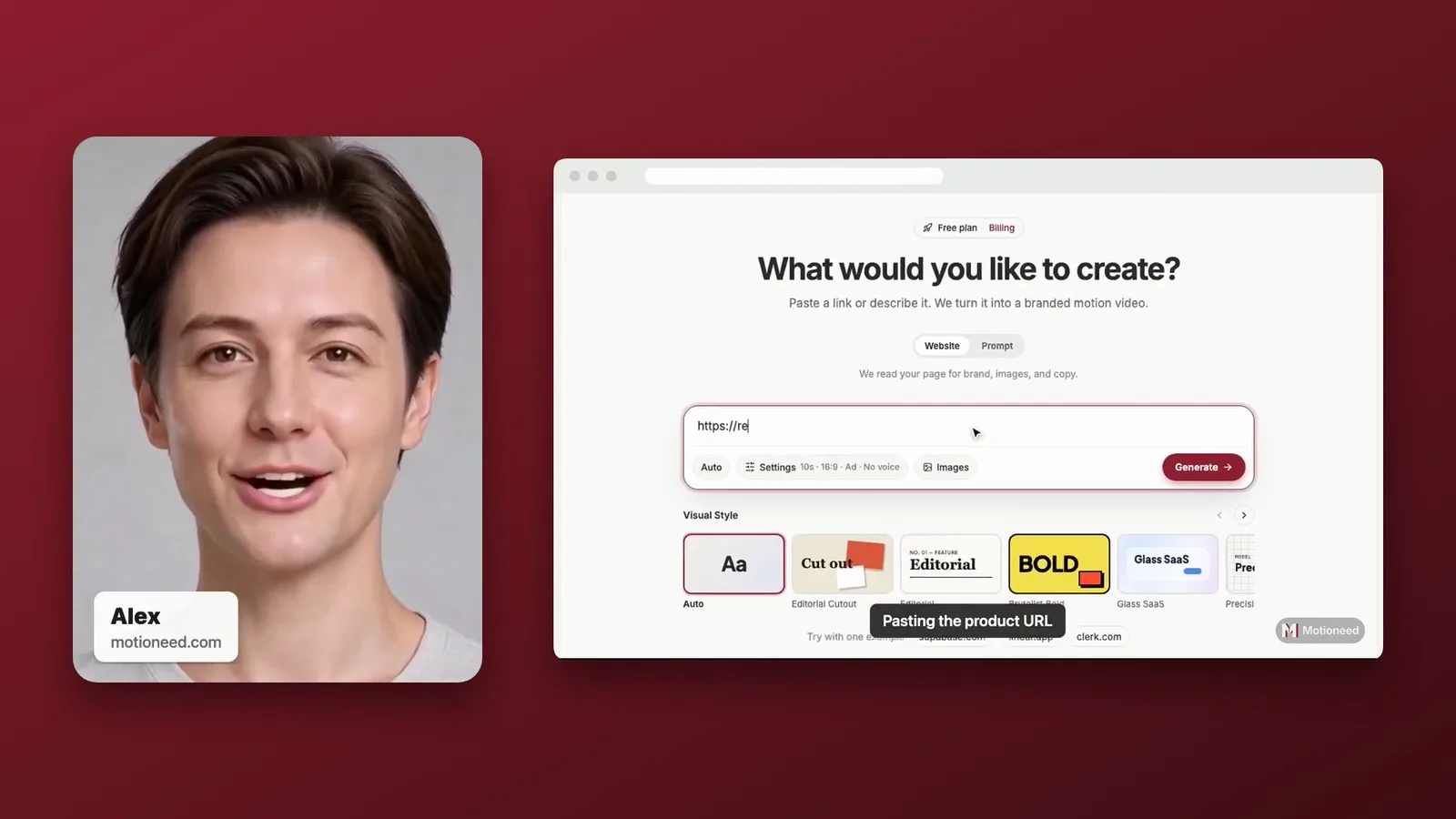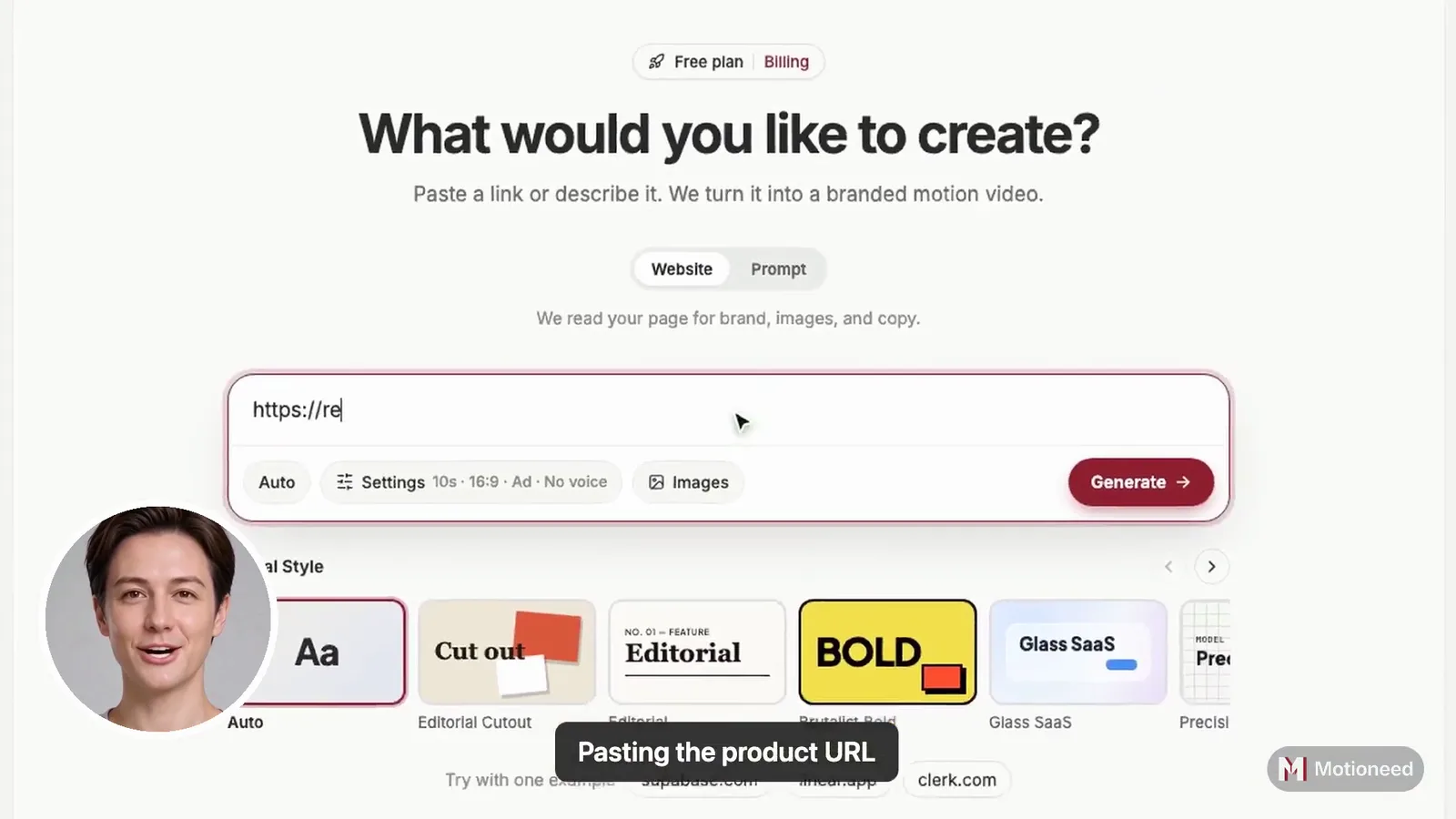
Short answer: To make a product demo video with your face in the corner and no webcam, record one real task on your live page and put an AI presenter, made from a photo of you, in a round frame in the bottom corner for the whole video. In Motioneed Demo this is the Walkthrough style: paste your URL, add a presenter, keep Walkthrough selected and press Generate. A 60 second Walkthrough with a 30 second recording costs 60 credits on Auto.
The face-in-the-corner video is the most familiar format in software. A person in a small circle, the product filling the screen, a voice walking you through. It works because it feels like a colleague showing you something, not an ad. The usual way to make one needs a webcam, a quiet room, a screen recorder and several takes. This guide shows how to get the same result from a link and a photo.
What the Walkthrough style looks like
| Part | What viewers see |
|---|---|
| Presenter | A round face with a white ring in the bottom-left corner, from the first second to the last |
| Recording | Your real page, full screen, used by a real browser; the view zooms in where it clicks, with a caption for each step |
| Captions | None on screen beyond the step captions; the presenter's voice carries it |
| Closing cards | Motion cards in the Editorial Cutout style, made from your page's logo, colors and copy; the presenter stays in the corner over them |
| Shape | 16:9, 30, 60 or 90 seconds |
The presenter talks for the whole video. That is the point of this style: one voice guides every step, the recording and the cards, the way a teammate would on a call.
When to choose a face in the corner
Pick Walkthrough when the product is the star and the voice is the guide:
- Feature walkthroughs for a docs page or a help center article.
- Customer success videos that answer "how do I do this?" with one task.
- Sales follow-ups where a familiar face makes the recording feel personal.
- Internal demos of a new release for the rest of the team.
If you want people to see the presenter large before the product, choose Keynote or Creator instead. If the presenter should sit beside the product rather than over it, choose Studio.
How to make one, step by step
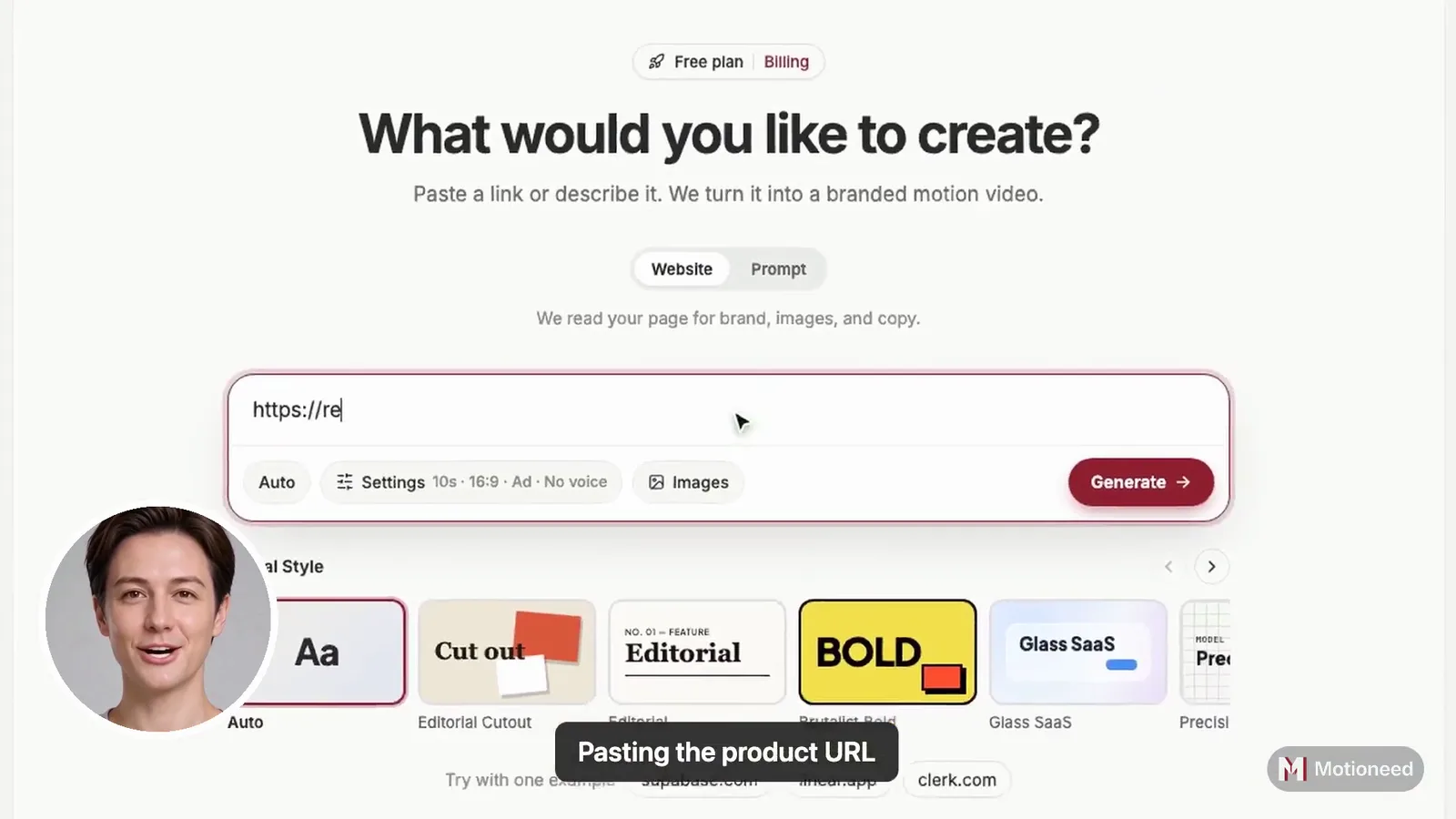
- Paste the page to show. Use a public page, such as your app's home page or a feature page. The recording opens it in a real browser, so pages behind a login can't be recorded.
- Say what to do on the page (optional). Two or three plain steps, for example "paste a link into the box and click Generate". Leave it empty and Demo picks the page's main action.
- Add a presenter. Upload a photo of yourself, or of someone who agreed, looking at the camera, and pick a voice. AI makes the photo speak.
- Keep the Walkthrough style. It is the first tile in the Style row under the link box and is selected by default. Hover any style to watch it large before you pick.
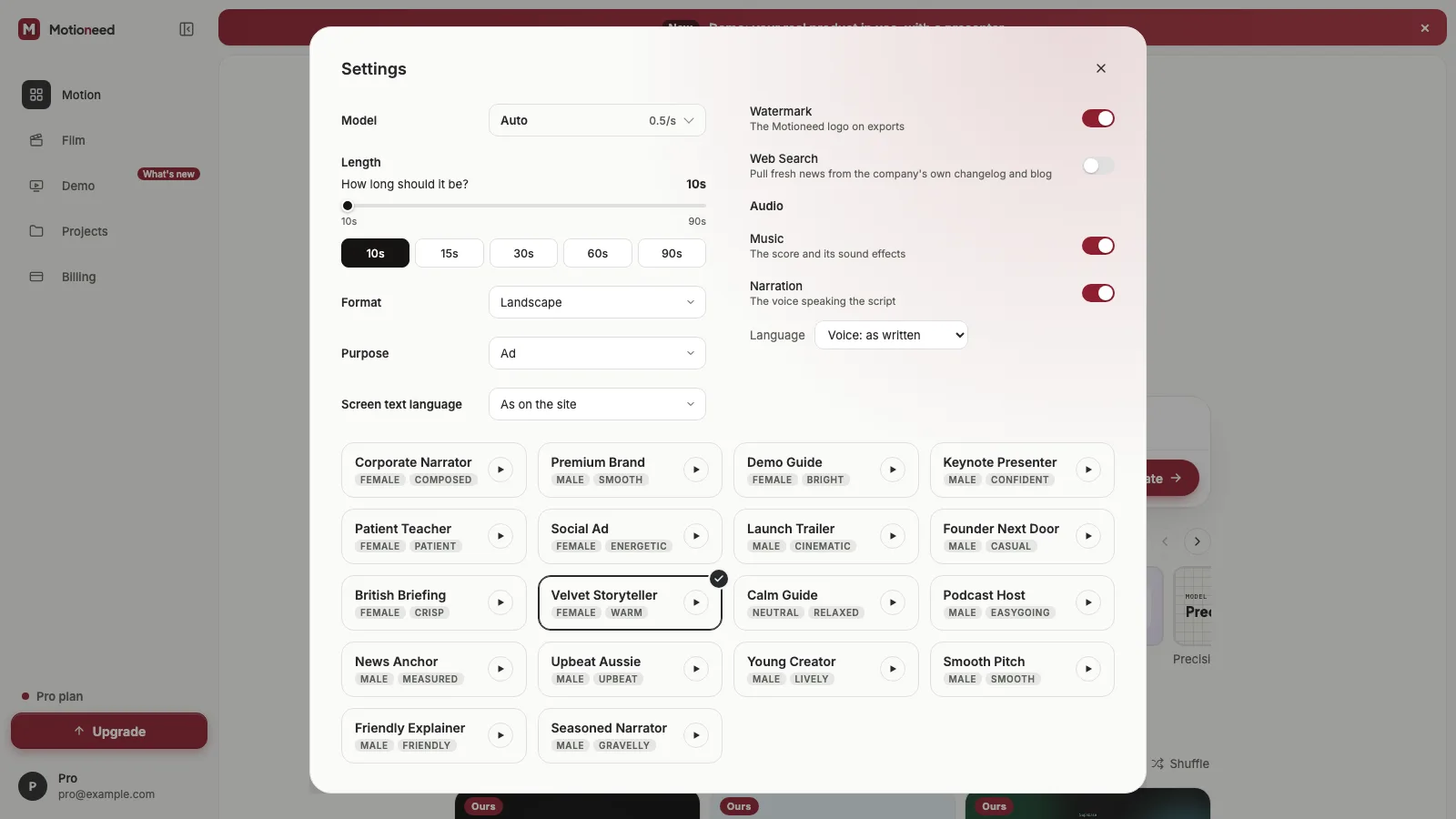
- Pick a length and Generate. 30, 60 or 90 seconds. The script is written from your page and timed to the length; you can write your own in the presenter dialog.
Pick a screen text language in Settings and the presenter speaks it too.
What to say when you are in the corner
Because the presenter is on screen the whole time, the script has to fill the whole length. A few rules keep it natural:
- Open with who it is for, not with your product's name: "If you ship email from code, this is for you."
- Narrate what is happening: "We paste the link and press Generate."
- Use "we". It sounds like someone showing you, not selling to you.
- End on one next step: start free, read the docs, or book a call.
Speech runs at about 2.4 words a second, so a 60 second Walkthrough is about 145 words.
What it costs
A Demo is charged in three parts: 3 credits for the recording, 0.7 credits for each second the presenter is on screen, and the cards at Motion's rate, 0.5 credits a second on Auto. In Walkthrough the presenter is on screen the whole time, which makes it the style where the presenter costs the most.
| 60 second Demo, 30 s recording, Auto | Credits |
|---|---|
| Recording | 3 |
| Presenter, 60 s on screen | 42 |
| Cards, 30 s | 15 |
| Total | 60 |
The most a Demo could cost is held before it starts and shown next to Generate; you pay for what was made and the rest goes back. To spend less, choose Studio (the presenter only talks over the recording) or make a 30 second video.
How Walkthrough compares with the other styles
| Style | Presenter | Best for |
|---|---|---|
| Walkthrough | Round, bottom-left, all the way through | Feature walkthroughs, support, sales follow-ups |
| Studio | On a card beside the page in a browser window | Homepage hero, outbound sales |
| Keynote | Large on a dark stage, then a square over the page | Launches and big releases |
| Creator | Full screen first, then the corner, with big captions | Social posts and ads |
FAQ
Do I need a webcam or a microphone?
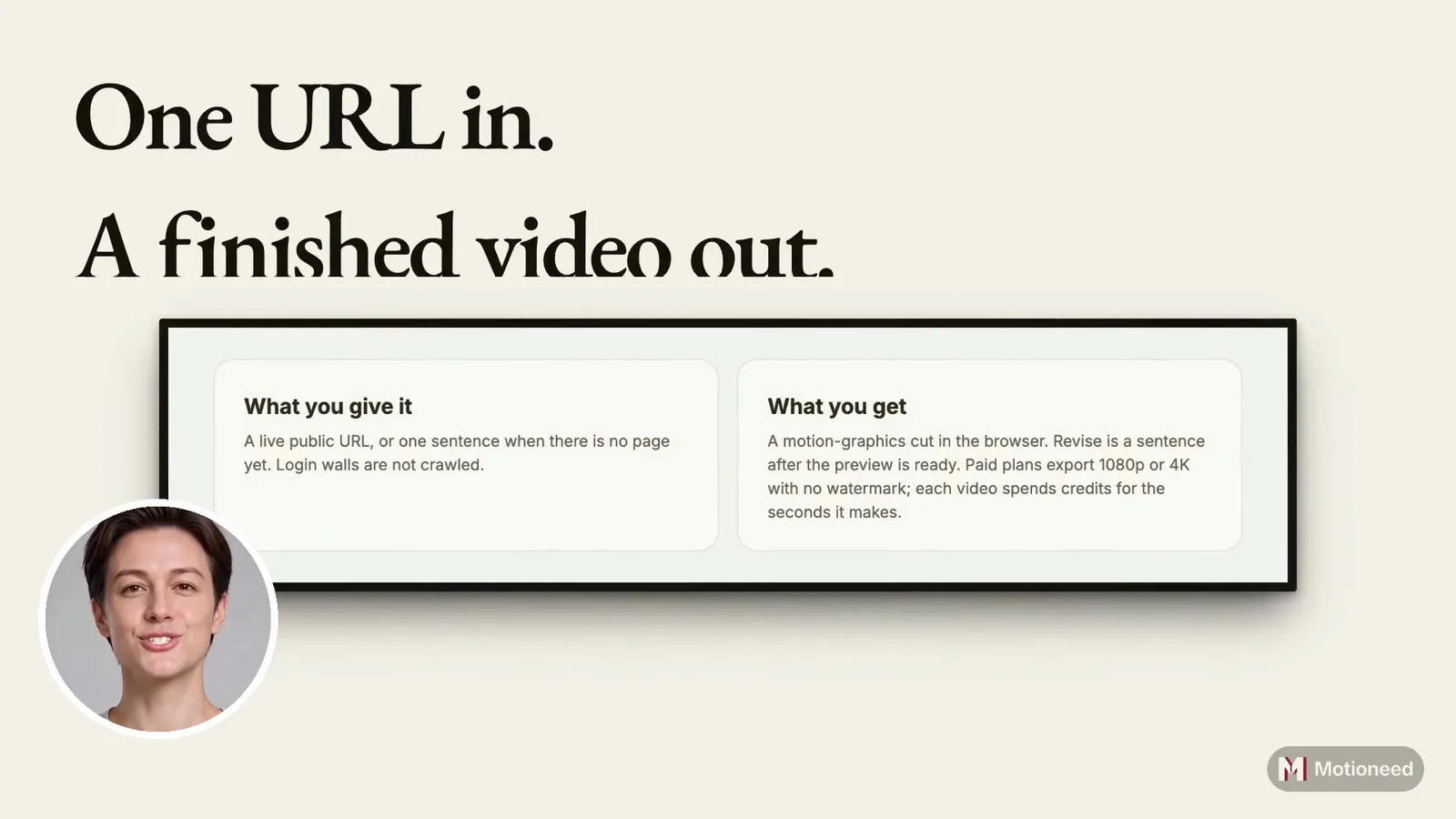
No. The presenter is made from one photo and one of the voices on offer, and the recording is made by a browser. You need a public page and a photo of yourself or of someone who agreed to be used.
Can the face sit in the bottom-right corner instead?
Walkthrough always uses the bottom-left corner, clear of the Motioneed mark. Creator puts the presenter in the bottom-right corner after a full-screen opening.
Can I make a Walkthrough without a presenter?
Yes. Without a presenter you get the recording full screen and the closing cards: 18 credits for a 60 second Demo with a 30 second recording on Auto.
Should I say the presenter is AI?
Yes, where the platform asks. YouTube, for example, asks you to mark realistic altered or synthetic content. Only use a face you have the right to use.
How long should a face-in-the-corner demo be?
30 seconds for a social post or a hero section, 60 seconds for a product page, 90 seconds for onboarding emails. For more on placement, see product demo video for website, and for scripts, how to make a product walkthrough video with an AI presenter.
Make a Walkthrough Demo from your own page.