Short answer: To make a product walkthrough video with an AI presenter, record one real task on your live page, add a presenter made from a photo of yourself (or someone who agreed), and pick a style for how they appear: in the corner throughout, beside the page, on a stage for the opening, or full screen with captions. Keep it to 30 to 90 seconds, write the script around one task, and disclose AI-generated people where the platform asks. Motioneed Demo does all three parts from one URL.
Updated Oct 28, 2026: the presenter now comes with four styles instead of four layouts.
A walkthrough video answers one question: what does it look like when I actually use this? A screen recording answers it honestly but feels cold. A talking-head video feels personal but hides the product. A presenter beside a real recording gives you both, and AI now lets you add one without a camera, lighting or a second take.
This guide covers the decisions that matter: which task to show, where the presenter goes, what they say, how long it runs, and what it costs.
Pick one task, not a tour
The walkthroughs that work show one task from start to finish. Pick the action that makes a new visitor understand the product:
- An email API: paste a snippet, switch languages, see the call.
- A video tool: paste a link, press Generate.
- A project tracker: create an issue, move it across the board.
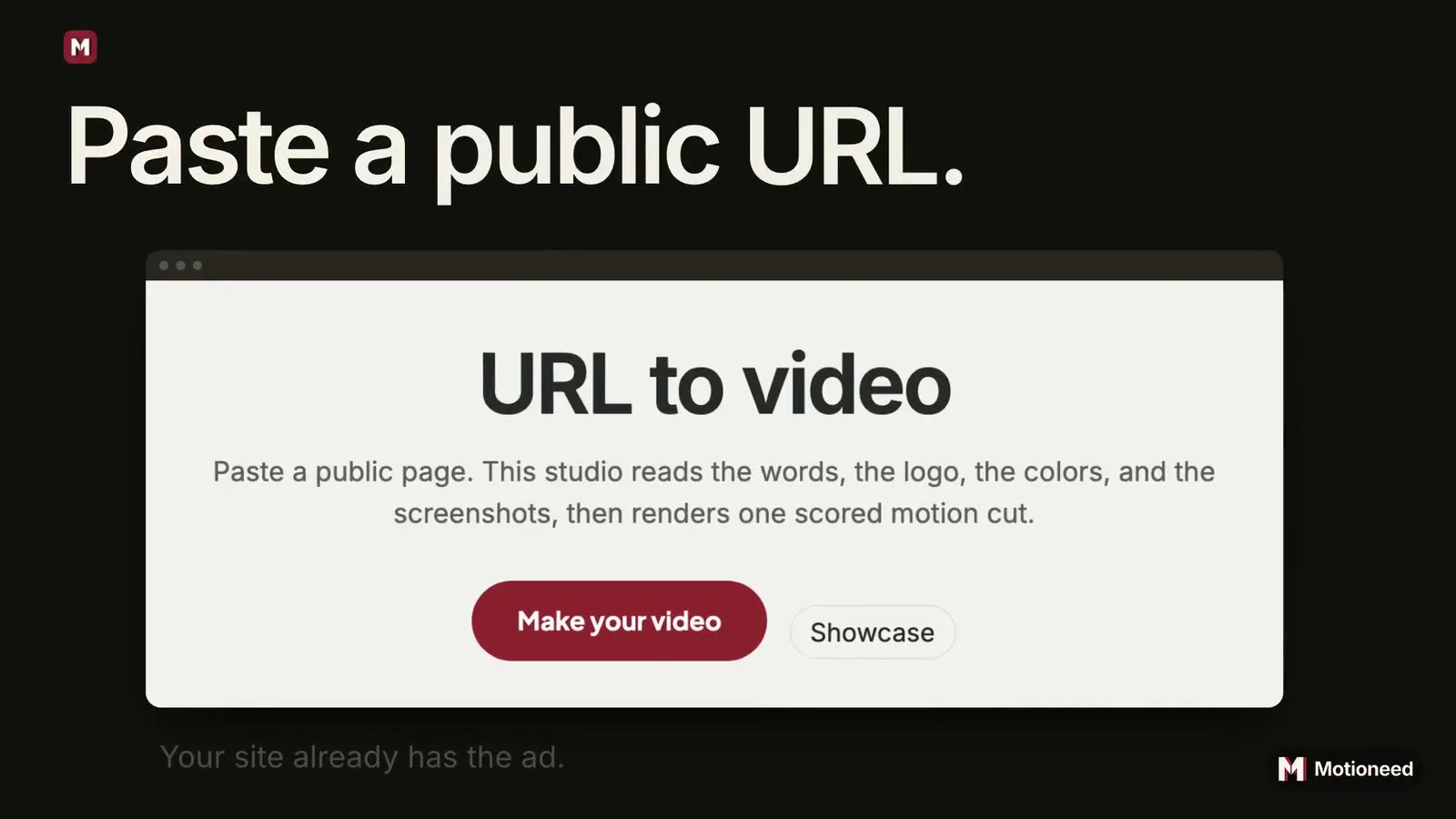
Write it as two or three plain steps, for example "paste https://example.com into the box and click the main button". Skip sign-up, settings and menus. If you leave the steps empty in Motioneed Demo, it picks the main action on the page itself.
Choose a style
The style decides where the presenter appears and how the page is framed. Pick it in the Style row under the link box; hover a style to watch it large.
| Style | Presenter | Best when |
|---|---|---|
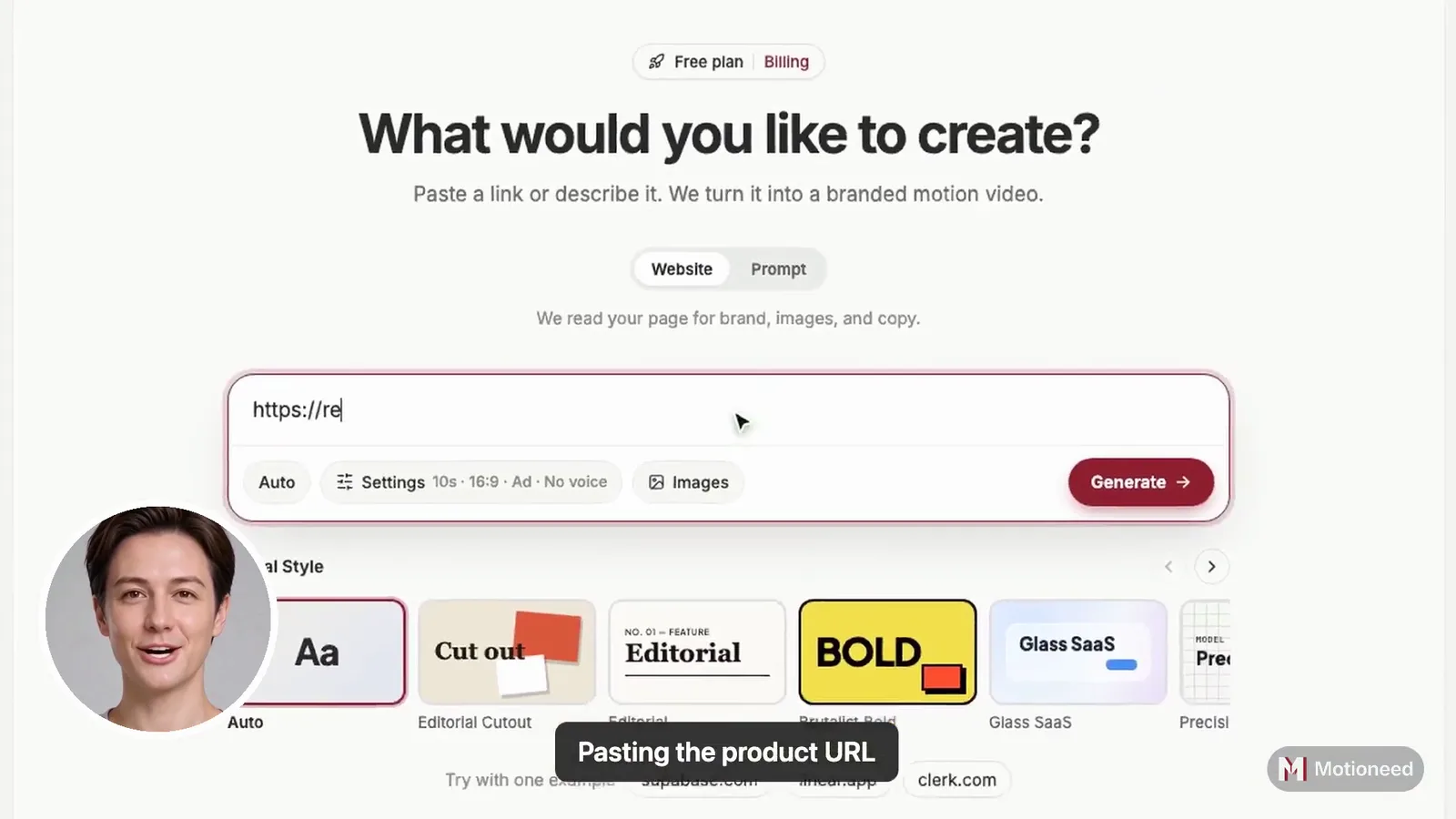
| Walkthrough | Round, in the bottom-left corner from start to end | The voice should guide every step |
| Studio | On a card beside the page in a browser window, on your brand color | The person and the product deserve equal space |
| Keynote | Large on a dark stage for six seconds, then a square over the page | A launch needs a hook |
| Creator | Full screen for six seconds, then the corner, with big captions | It will play muted in a feed |
If you are not sure, start with Walkthrough: it is the default, and the product gets the full frame.
Write the script around the task
Leave the script empty and Demo writes it from your page, timed to the layout. If you write your own, a few rules help:
- Open with the problem, not the product name. "Sending email from code shouldn't take a week."
- Say what the viewer is seeing. "We paste a snippet and pick a language."
- Use "we", not "you will". It sounds like a person showing something, not an ad.
- End on one next step. Start free, read the docs, or book a call.
Speech runs at about 2.4 words a second, so a 15 second opening is about 35 words and a 60 second corner presenter about 145. Pick a screen text language and the presenter speaks it too.
Pick a length
| Length | Use it for |
|---|---|
| 30 seconds | Social posts, a hero section, a launch announcement |
| 60 seconds | A product page or a "watch demo" button |
| 90 seconds | Onboarding emails and sales follow-ups |
The recording comes first, and Motion cards with your logo, colors and copy fill the rest. For more on lengths and placement on your site, see product demo video for website.
What it costs
A Demo is charged in three parts: 3 credits for the recording, 0.7 credits a second the presenter is on screen, and the cards at Motion's rate for the model, from 0.5 credits a second on Auto. Some examples on Auto:
| Demo | Recording | Presenter | Cards | Total |
|---|---|---|---|---|
| 60 s, no presenter, 30 s recording | 3 | 0 | 15 | 18 credits |
| 60 s Studio, presenter beside a 30 s recording | 3 | 21 | 15 | 39 credits |
| 60 s Walkthrough, presenter all through, 30 s recording | 3 | 42 | 15 | 60 credits |
The most a Demo could cost is held before it starts and shown next to Generate; you pay for what was made and the rest goes back. A Pro plan's 100 credits a month covers several presenter-led Demos. See pricing.
Be honest about the AI presenter
An AI presenter is a real person's likeness, so treat it that way:
- Use your own photo, or one you have permission to use. Never a celebrity, a customer or a stock model you don't hold rights to.
- Disclose it. YouTube asks creators to mark realistic altered or synthetic content when they upload. Other platforms have similar labels.
- Don't promise what the product doesn't do. The recording is your real page, so the claims in the script should match what the viewer can see.
How to make one with Motioneed
- Open Demo, paste your public page and, if you like, the steps.
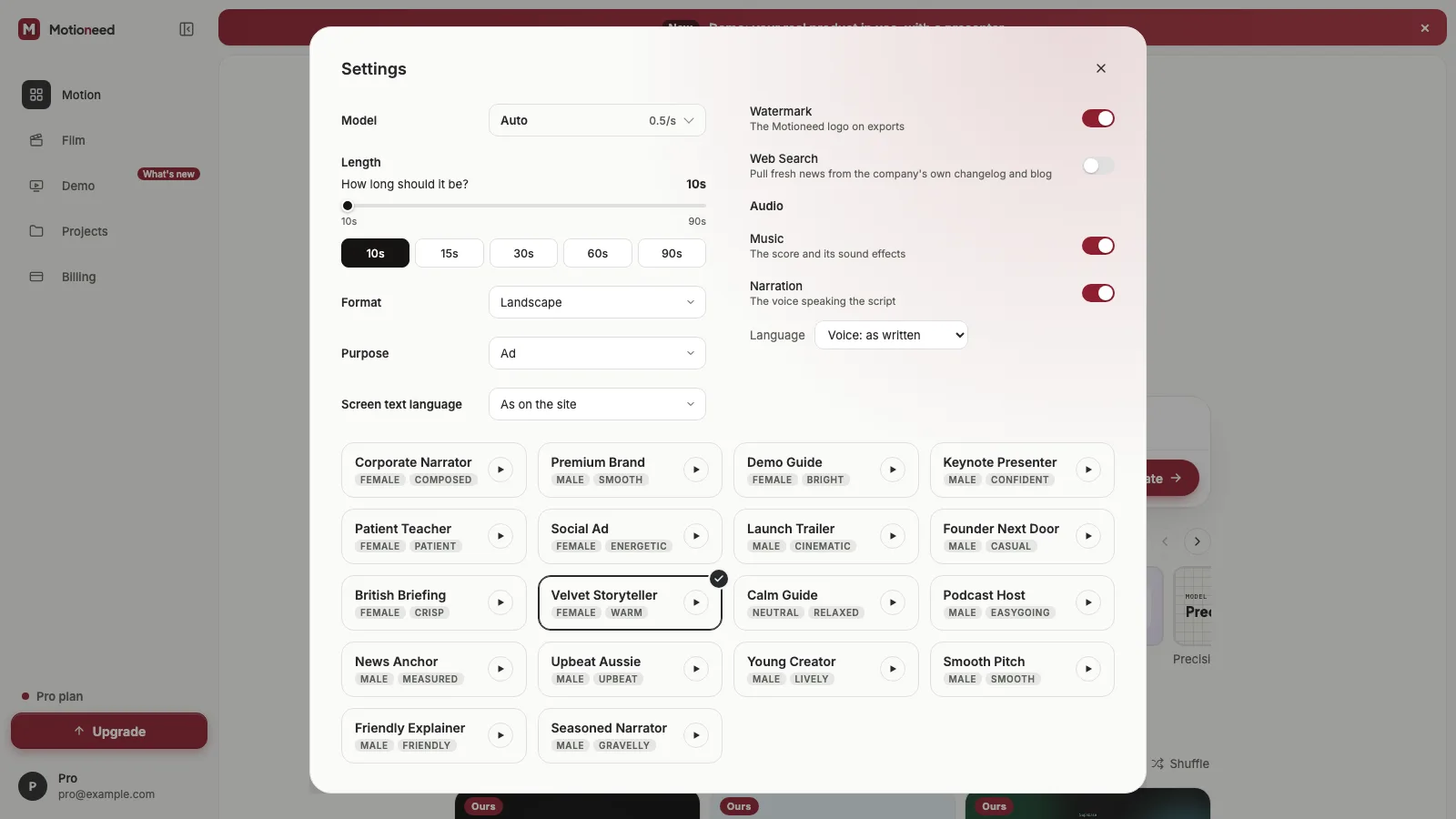
- Pick a Style under the link box, and under Settings choose 30, 60 or 90 seconds and the model.
- Under Presenter, add a photo and a voice. Leave the script empty or write your own.
- Check the credits shown and press Generate.
- Revise the cards in plain words if needed; the recording and the presenter stay.
For what Demo is and where it stops, read Introducing Motioneed Demo or the Demo page.
FAQ
Can I make a walkthrough video without being on camera?
Yes. Add a photo instead of filming yourself and an AI presenter speaks the script. You can also make a Demo with no presenter at all.
How long should a product walkthrough video be?
30 to 90 seconds for marketing. Detailed setup guides belong in docs or a longer tutorial.
Can the walkthrough show screens behind a login?
Not with Demo. It records public pages only and never types passwords or payment details.
Do I have to label an AI presenter?
On YouTube you mark realistic altered or synthetic content when you upload. Check each platform's rules before you post.
Which style should I choose?
Walkthrough is a safe default. Choose Studio to keep the whole page visible, Keynote for a launch, and Creator for a feed that plays muted.
Can the presenter speak another language?
Yes. Pick a screen text language in Settings and the presenter's script is written in it.